How to turn a LinkedIn job posting into a tailored resume
Published
To tailor a resume from a LinkedIn job, start with the exact posting, check its requirements, and match them to career evidence you can defend. Job Lens can bring that reviewed posting into ElevateAI and prepare eligible documents from your saved profile. It does not change your LinkedIn profile or submit an application.
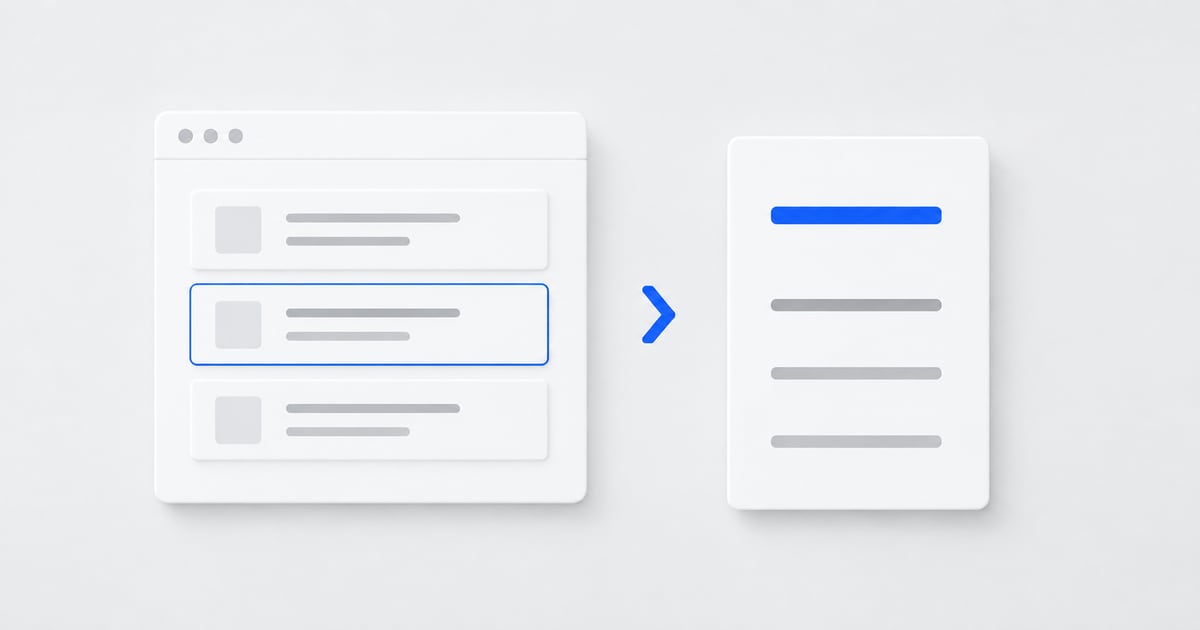
Start with the job you actually want
LinkedIn may show a search list, a selected detail pane, company information, and recommended roles on the same screen. Your input should contain one job. Open the individual posting or select the result so its details are visible, then invoke Job Lens from the toolbar.
Before analysis, compare the extracted employer and title with the visible role. Check the location against the posting, not a company follower count or a city shown on another result. Read the beginning and end of the description. If either belongs to a different job, correct the input before generating anything.
Make a requirement-to-evidence map
Choose the responsibilities that define the work, then attach one honest example to each. Separate direct experience from adjacent experience. Building a dashboard with React is relevant to a frontend role, but it does not prove that you have led a design system or worked with every tool in the posting.
Do not turn the map into a keyword inventory. Its purpose is to help you select what deserves space. A role emphasizing accessibility should lead you toward a real accessibility project, not repeated uses of the word accessible.
How do you prepare a resume from the posting with Job Lens?
Complete your ElevateAI career profile with accurate dates, projects, responsibilities, and outcomes. Connect Job Lens, review the captured details, and analyze the job. Inspect the strengths and gaps before choosing whether to prepare documents.
When your plan and remaining allowance permit it, prepare the resume and cover letter. Open them in ElevateAI for review and editing. Reusing the profile removes the need to explain your career again; it does not guarantee that every generated sentence is correct. A missing project in your profile can still mean a missing example in the draft.
Compare the final document with the posting
Read the exported or opened document from top to bottom. Confirm that its first examples speak to this role, that employer names and dates are unchanged, and that the file is readable. Check whether any generated claim sounds stronger than your actual contribution. Replace vague praise with a specific fact or remove it.
Return to the employer's application route and follow its instructions. LinkedIn Easy Apply and external application pages are separate from Job Lens. Attaching a document is not proof that you submitted the form; look for the employer's completion confirmation.
- Check title, company, and job identity again before attaching files.
- Verify every number and claimed skill.
- Follow the requested document type and application language.
- Review form fields independently from the resume.
- Record which files you submitted and when.
If the page changes or text is missing
Make sure the job detail is loaded. If automatic extraction is incomplete, correct the review fields or deliberately choose the selected-text fallback. Do not paste the entire search page. A concise description of one role is more useful than a long mixture of listings.
Switching tabs preserves the Job Lens view. To work on another role, invoke the extension on that posting and check its source label. Do not assume the existing result belongs to whichever tab happens to be visible.
Common questions
Can I use a job selected in LinkedIn search?
Yes, the current workflow supports a selected job detail in LinkedIn search or collections. Always confirm the captured title and description. Open the individual posting if the selected detail is incomplete.
Does Job Lens upload the resume to LinkedIn?
No. Open and review the document in ElevateAI, then use the employer's application process yourself.