LinkedIn Post Translator: Turn Rough Notes Into a Polished Post (2026)
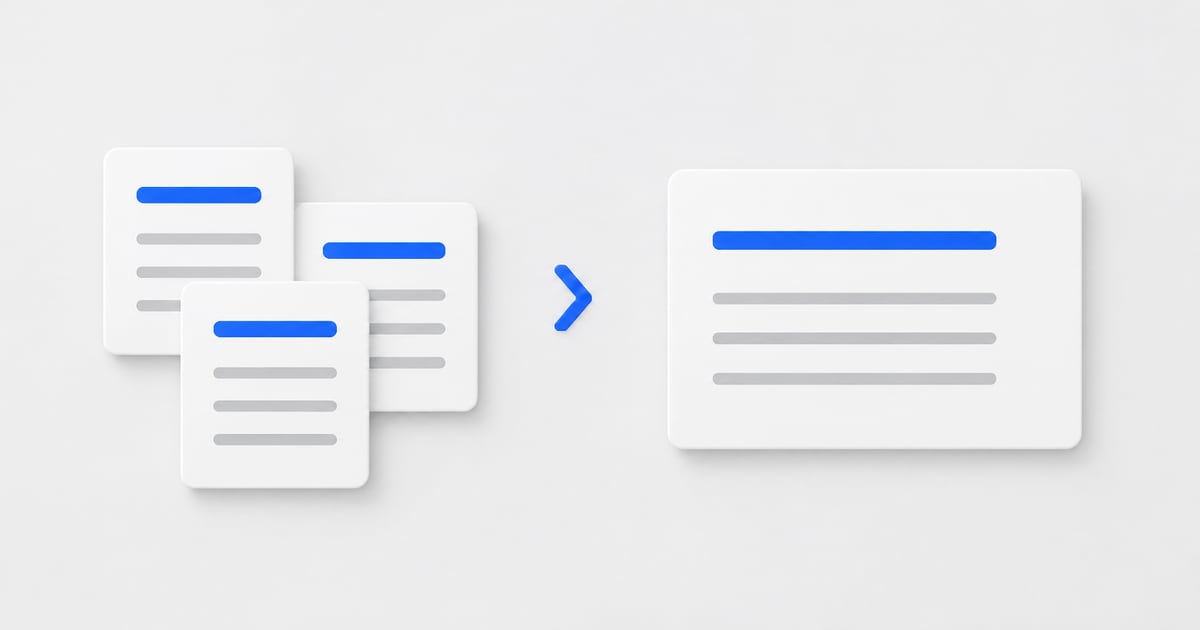
Many professionals know what they want to say on LinkedIn but struggle with structure and brevity. A LinkedIn post translator helps you move from informal notes to a polished draft: clear opening, short paragraphs, and a closing that fits your audience—while you retain responsibility for facts, tone, and final edits.
When should you use an AI LinkedIn post translator?
Use an AI LinkedIn post translator when you have a real idea or notes and need a clear opening, short paragraphs, and a professional close—not when you want the model to invent a story. Public posts can support visibility, demonstrate expertise, and signal openness to new roles. The risk is always the same: unclear writing or overstated claims reduce trust. The objective is not to sound artificial—it is to present one idea clearly, support it with evidence you can defend, and invite conversation in a professional register.
Characteristics of a strong post
Lead with one concrete point, keep language direct, avoid long hashtag lists and generic calls for engagement, and close with a specific question or invitation when it serves your goal.
What LinkedIn post styles can ElevateAI draft?
ElevateAI can draft Lesson, Win, Loss, Job-search update, Project update, and Open to work posts. In Dashboard → Networking, open the Post tab and select a style so the output matches the type of update you are publishing:
- Lesson — what went wrong or what you learned, and what others can apply.
- Win — a milestone or outcome; include only metrics you can substantiate.
- Loss — concise reflection appropriate for a public professional audience.
- Job-search update— transparent, specific, and respectful of readers' time.
- Project update — concise progress or delivery notes for technical and product audiences.
- Open to work — a clear, professional statement of availability without undue pressure on the reader.
How do you pick a tone for a LinkedIn post?
Pick a tone that matches how you present yourself in interviews and client conversations. The same notes can be rendered as professional, warm, confident, casual, or executive—then review the opening and closing.
Recommended: generate a draft, then revise at least one sentence manually so the post reflects your natural phrasing.
How do you turn notes into a LinkedIn post?
Turn notes into a LinkedIn post by pasting a raw thought (with any role or keywords inside it), choosing style and tone, then generating a draft plus two variants you edit before publishing.
- 1. Enter your material in the Raw thought field (minimum twenty characters so the model has sufficient context).
- 2. Optionally mention the target role, company, or keywords there for alignment with your search or brand.
- 3. Select style and tone, then generate a primary post and two variants (alternate openings and closings).
- 4. Replace placeholders, verify facts, edit for voice, and publish—or retain the draft in Networking history.
What should you not do with an AI LinkedIn post?
Do not publish unverified metrics, dump hashtag blocks, skip a human review, or let the post contradict your resume and interview narrative.
- • Publishing unverified metrics or employer claims.
- • Long hashtag blocks or generic engagement prompts.
- • Over-reliance on automation without a final human review.
- • Inconsistent messaging relative to your resume and interview narrative.
Frequently asked questions
What is a LinkedIn post translator?
A LinkedIn post translator is an AI-assisted workflow that takes informal or unstructured notes—often closer to how you would explain an idea in conversation—and rewrites them as a clear LinkedIn post with line breaks, a direct opening, and an appropriate closing. A professional implementation prioritizes accuracy and credibility: it should not invent employers, titles, or metrics, and it should avoid exaggerated or inauthentic corporate jargon.
How is ElevateAI different from novelty "LinkedIn speak" generators?
Some tools emphasize stylized or satirical output for entertainment. ElevateAI Networking is built for job seekers and professionals who need consistent, credible copy. The Post tab focuses on authentic tone, a choice of post style, and placeholders when facts are missing—so you can edit and publish with confidence.
How do I use ElevateAI's LinkedIn Post tab?
Sign in, go to Networking in the dashboard sidebar, open the Post tab, and paste at least 20 characters in the Raw thought field (the label used in the product for LinkedIn posts). Select a post style (win, lesson, loss, job-search update, project update, or open to work), choose a tone (professional, warm, confident, casual, or executive), then click Write the post. You receive a primary post plus two alternative variants for review before publishing.
Will AI invent achievements on my LinkedIn post?
ElevateAI is instructed not to invent job titles, companies, metrics, or offers. If a detail is missing, the draft uses bracketed placeholders such as [specific result] so you can supply accurate information before posting.
How many LinkedIn networking drafts can I create?
Free accounts can explore the platform, while paid plans unlock Networking drafts. Job Seeker includes 30 follow-up/networking drafts per month, and Professional includes 100.
Related guides
- → LinkedIn Headline Examples
- → LinkedIn Profile Optimization Checklist (2026)
- → AI Recruiter Outreach on LinkedIn
- → AI Follow-Up Messages (Networking)
Post tab in Networking
ElevateAI includes a LinkedIn post translator in the Post tab under Dashboard → Networking. Paid plans include follow-up and networking drafts with clear monthly limits as described on pricing.
Create a free account — Networking